
Support Ticket Management3 min read
Ticket Details Drawer & Activity Log Timeline
Inspect slide-over ticket details, one-click WhatsApp & call actions, order breakdowns, and internal agent notes.
Overview
Clicking any ticket row opens a slide-over details drawer displaying full customer context, one-click outbound communication, and private team notes.
📍Exact Buttons / Menus in Dashboard
Open DrawerWhatsApp ChatPlace CallAttach ImageAdd Note >
🖼️Visual Interface Guide
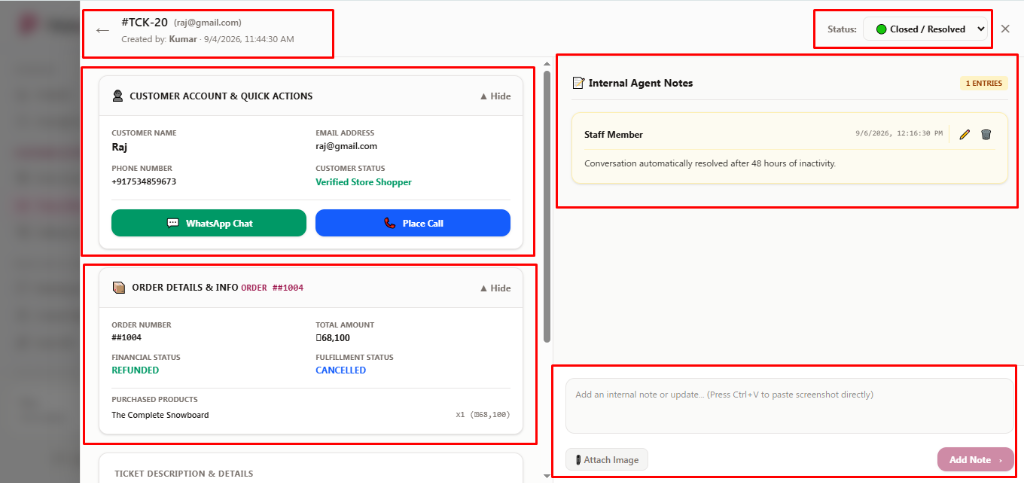
Step-by-Step Instructions
1Opening Ticket Drawer Panel
Locate any ticket row in the Tickets Manager ledger and click the [Open Drawer] action button on the right side.
🎯Exact Action Button: [Open Drawer]
2Customer Context & Direct Communications
Review customer details and immediately reach out via [💬 WhatsApp Chat] to send a WhatsApp message or [📞 Place Call] to phone the customer directly.
🎯Exact Action Buttons: [WhatsApp Chat], [Place Call]
3Internal Team Notes & Screenshot Attachment
Collaborate privately with teammates using Internal Agent Notes. Type your message, paste screenshots directly with Ctrl+V, click [Attach Image], and click [Add Note >] to save. Internal notes are strictly invisible to storefront customers.
🎯Exact Controls: [Attach Image], [Add Note >]
Was this guide helpful?